A remote team photo can give a small, distributed group one shared visual for a website or presentation when an in-person shoot is impractical. TogetherLens creates a new shared scene from separate portraits; it does not recreate a real meeting or prove that everyone was together.
This guide is for teams of two to five people using individual headshots. Start with consent and a clear public-use plan, then choose only a scene that is visibly available in the current app and review the result together.
Before you generate a remote team photo
- Agree on the context first. Decide whether the image is for a website, presentation, or another public-facing use before collecting portraits.
- Use one current portrait per person. Choose a clear, front-facing source image each teammate has permissioned for this use.
- Set the right expectation. The outcome is a new AI-generated shared scene, not a record of a real workday or company event.
- Stay within five people. Smaller groups are easier to inspect, crop, and approve together.
- Review before publishing. Check every likeness, the shared scene, and the intended label with everyone pictured.
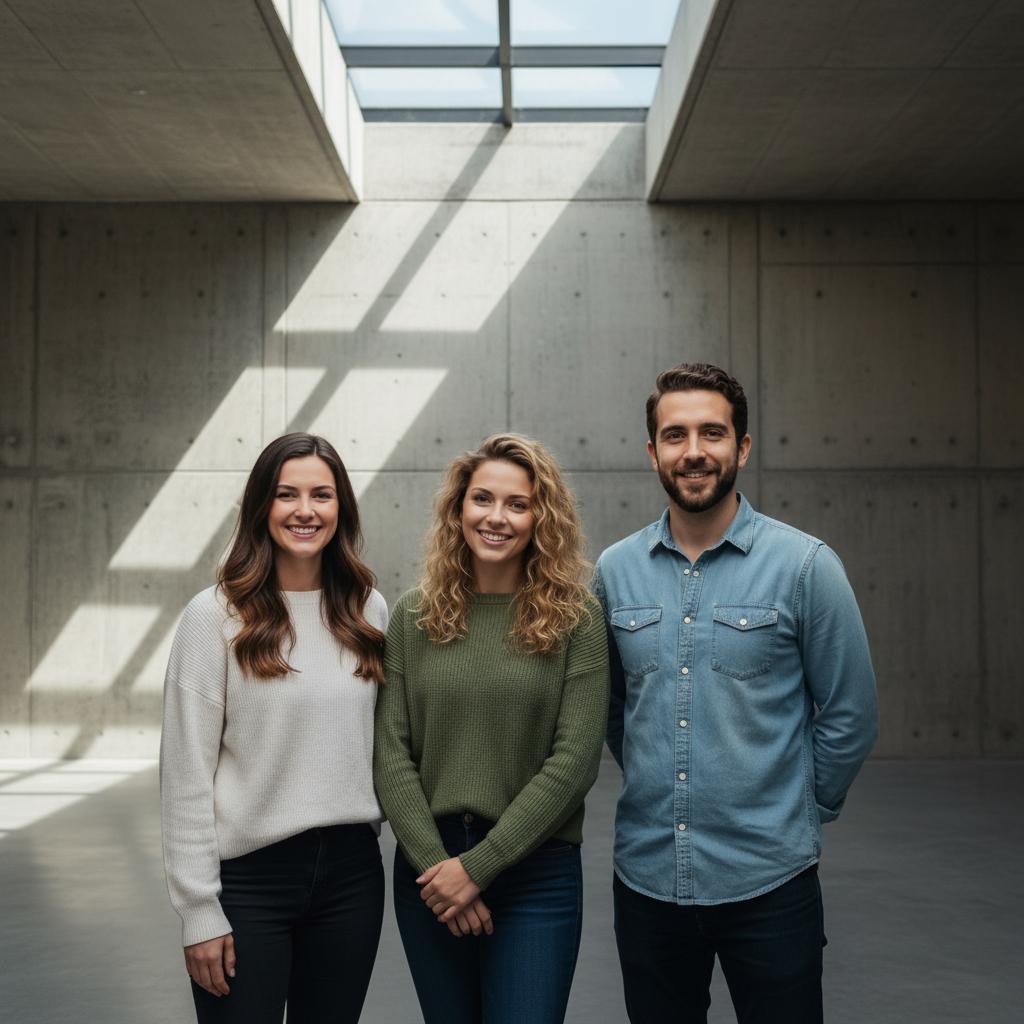
How to make a virtual team photo from individual headshots
- Choose the intended use. Name the page, deck, or other context the group is approving so the result has a clear purpose.
- Collect clear source portraits. Ask each person for a recent, well-lit image with face, hair, and shoulders visible; avoid sunglasses and heavy filters.
- Choose one shared scene. Pick a setting currently visible in the app that suits the agreed context instead of mixing unrelated lighting or formality.
- Generate, inspect, and label. Check each person’s likeness, spacing, and crop. Keep only a version the group approves, and describe it as generated where that distinction matters.
Remote group photo versus a narrow header crop
- General remote team photo: Use this guide when the primary intent is a shared composition from individual headshots.
- Narrow site or profile banner: Plan the crop separately when a header format is the real requirement; see the team-banner crop guide.
- One source of truth: Keep this URL for general remote-team-photo questions so the focused guide and its supporting pages do not compete for the same intent.
When not to use a generated team photo
- Not an employee record: Use a real photo for an ID badge, employment record, or another official identity context.
- Not proof of an event: Do not present a new shared scene as evidence of a meeting, offsite, or other real company occasion.
- Not without approval: Do not publish it until every pictured person has agreed to the source image and public use.
- Not beyond the supported group size: Keep each generated composition to five people or fewer.
FAQ
How do I create a remote team photo from individual headshots?
Collect one clear, current, permissioned portrait for each person, agree on where the new image may appear, choose a shared scene that is visibly available in the current app, then review the result together before using it.
What is a virtual team photo?
It is a newly generated shared scene made from separate portraits. It is not documentary evidence that the team met in person or attended a real event.
Can a generated team photo go on our website?
Use it publicly only after the pictured people agree to that context. Review every likeness and crop, keep the source-photo permissions clear, and label the finished image as generated when that context needs it.
How many people can be in one remote group photo?
TogetherLens currently supports up to five people in one shared composition. For a larger team, make smaller, clearly labelled groups rather than forcing everyone into one result.
When should we use a real team photo instead?
Use an actual photograph for an employee badge, an employment record, or proof that a company event happened. A generated scene is for a consented creative use, not a substitute for those records.
Ready to create: Use the AI team photo generator for the direct app workflow, start with the friends and team photo recipe, or learn to combine individual headshots.
Create a remote team photo from individual headshots
Free to install. Premium includes full-quality results and more scenes.
- Photorealistic AI results
- Multiple styles and poses
- Consent-first photo guidance